Connect Claude, ChatGPT or Cursor
How to connect your AI assistant to Getbeel, step by step.
Getbeel connects to AI assistants through MCP, the standard that lets an assistant use outside tools. You add one address and sign in with your Getbeel account: no key to copy.
Before you start
- A Getbeel account with a team where you can manage settings.
- An assistant that accepts remote MCP connectors: Claude (web, desktop or Claude Code), ChatGPT, Cursor.
- The server address:
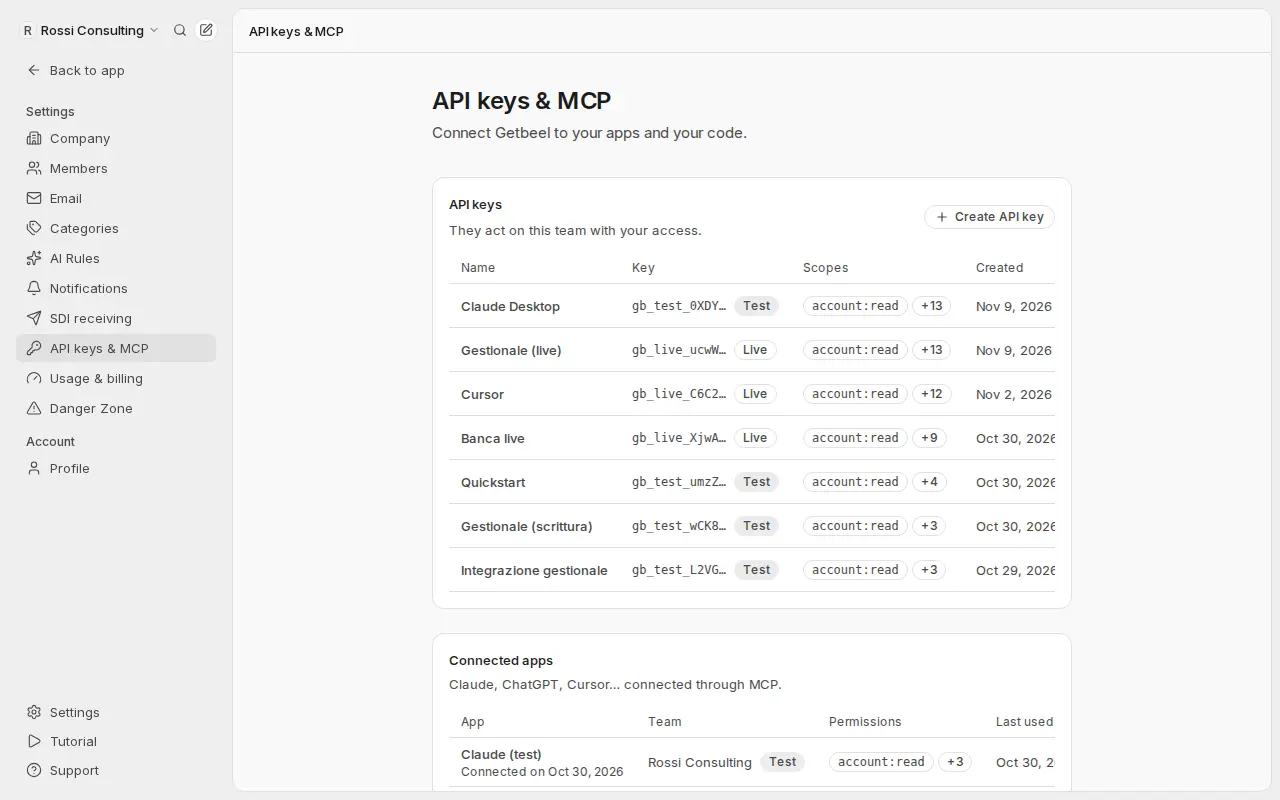
https://www.getbeel.com/api/mcp. You also find it in Settings → API keys & MCP. - No API key needed: you sign in with your account.
- Cost: the MCP server has no separate charge. Invoices sent live to SDI follow the price list (Pricing).
Steps
Add Getbeel to the assistant
On claude.ai or in Claude Desktop, open Settings → Connectors and choose Add custom connector. Name Getbeel, URL https://www.getbeel.com/api/mcp. Then choose Connect.
Sign in to Getbeel
A Getbeel page opens: Connect … to Getbeel, with the app's name. Sign in, or create an account.
Check where you go back to
The page shows where Allow takes you: the full host, such as claude.ai, or an app on your device.
Only Claude (claude.ai) and ChatGPT (chatgpt.com) are verified. For any other app, Cursor and Claude Code included, you see Getbeel has not verified this app. Allow it only if you started the connection yourself and you recognise the destination.
Choose team, mode and permissions
- Team: the company the assistant works on.
- Mode: Test to try it out, nothing reaches SDI; Live for real invoices.
- Permissions: what it can read and do. The defaults are fine to start.
Allow access
Choose Allow. You go back to the assistant, already connected.
Test the connection
Ask: "With Getbeel, who am I?". The assistant uses the whoami tool and answers with your company's name and the mode.
What just happened
- The assistant acts as you on that team, with the permissions you chose.
- In Test mode it works in the sandbox: no invoice reaches SDI.
- The connection shows up in Settings → API keys & MCP → Connected apps, with when it was last used.
Security
- Start with Test. Reconnect in Live only when you trust the flow.
- Ask for confirmation before sending. Keep tool approval on in the assistant, at least for
send_invoice. - Revoke in a moment. In Connected apps, choose Revoke: the assistant loses access at once.
In Live, send_invoice issues a real invoice with fiscal value, and it
cannot be undone. Check customer, amounts and VAT before you confirm.
If it fails
| Message | Cause | Fix |
|---|---|---|
| "This link is not valid" | The connection request has expired or is not valid | Go back to the assistant and connect it again |
| "To connect an app you need a team where you can manage settings." | You have no team, or your role cannot manage settings | Create a team or ask an owner for access |
| "Getbeel has not verified this app" | The app is not Claude or ChatGPT | Continue only if you started the connection and recognise the destination |
| "Could not connect the app" | The connection did not go through | Try again from the assistant |
| The assistant does not find Getbeel | The connector is not on in the conversation | Turn it on and start the request with "With Getbeel…" |
Assistant without sign-in?
Clients that only accept a header can use an API key: see the MCP server reference.