Issue and send an invoice
From draft to SDI in a minute, and how to read the outcome.
In Issued invoices you create e-invoices (FatturaPA), send them to SDI and follow the outcome. SDI is the Sistema di Interscambio, the Agenzia delle Entrate's exchange system.
Before you start
- An Italian company with complete details in Settings → Company: partita IVA (VAT number) or codice fiscale (tax code), address and tax regime.
- Your customer's details: name, address, partita IVA or codice fiscale. For delivery, their codice destinatario or PEC (certified email) address.
- You don't need to register anything with the Agenzia delle Entrate to send: Getbeel sends through its own channel.
- Cost. Real sends to SDI follow the price list (Pricing). Drafts and checks are free.
Steps
Create the draft
In Issued invoices press New invoice and choose New invoice. Fill in the Customer section. Getbeel checks the VAT number on VIES and shows VAT number verified.
The number follows your numbering: it is assigned when you save, as the next one for the year.
Add the lines
In Line items enter the description, Qty, Unit price and VAT %. For a line without VAT, choose the natura (for example N2.2). Press Add line for more lines. Totals are calculated for you.
Save the draft
Press Save draft. While it is a draft, you can edit or delete it.
Send it to SDI
Open the invoice's menu in the list, or its detail page, and choose Send to SDI. Getbeel shows Send this invoice to SDI?: confirm.
Before sending, Getbeel checks the XML against the official schema and the SDI checks. If a check fails, nothing is sent and Getbeel shows the error.
Follow the outcome
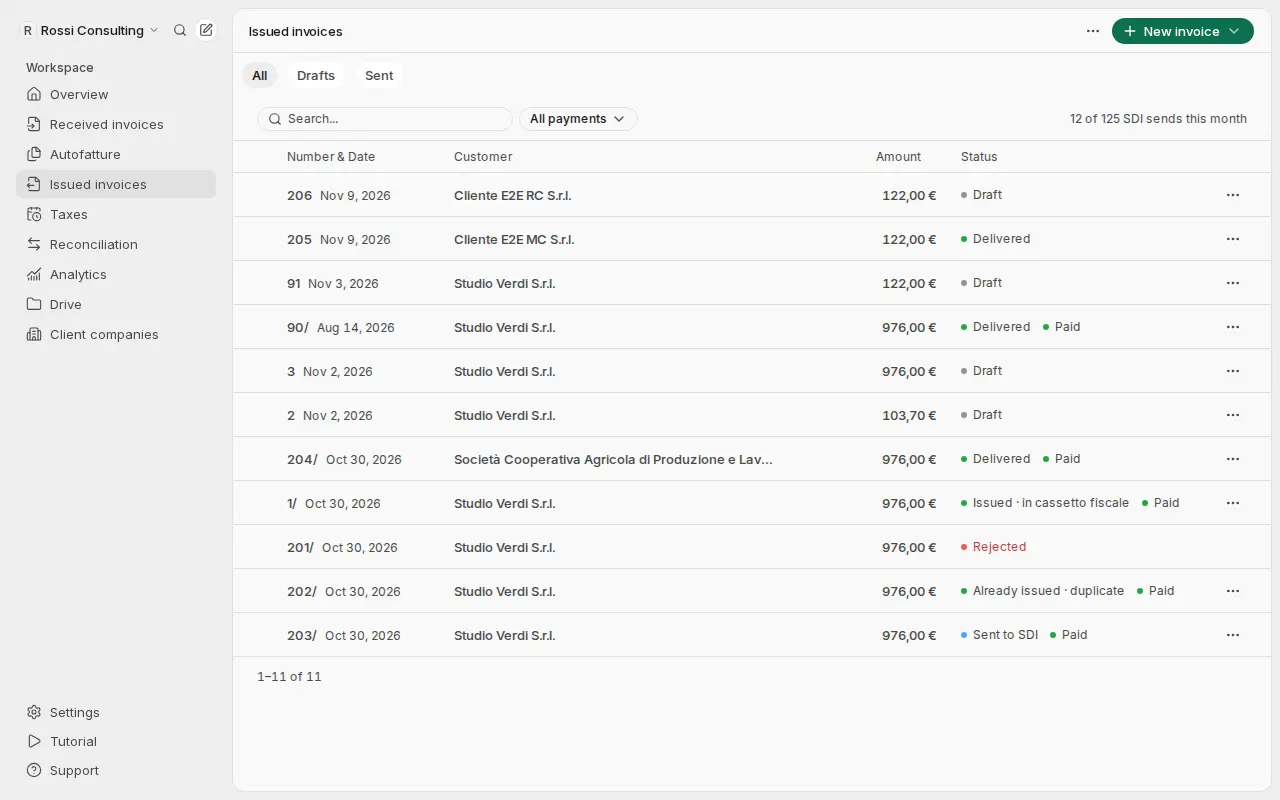
The status updates on its own when the SDI receipt arrives. Each status is explained below.
What just happened
- The draft took its number from the chosen numbering.
- The XML passed the checks before sending, with the SDI rules.
- The invoice is a tax document. You can no longer edit or delete it: you correct it with a credit note (TD04).
- The outcome arrives on its own and shows in the Status column.
| Status | What it means |
|---|---|
| Sent to SDI | SDI received it and has not answered yet. |
| Delivered | The customer received it. |
| Issued · in cassetto fiscale | SDI could not deliver it, but the invoice counts as issued. It is in the customer's reserved area (cassetto fiscale): do not resend it. |
| Rejected | An SDI check failed and the invoice counts as not issued. The detail page shows the code. |
| Already issued · duplicate | SDI already accepted the same document (00404): it is issued, do not send it again. |
Correct a rejected invoice and send it again with the same number and date. An undelivered invoice (MC) counts as issued from the date it was made available. Source: Agenzia delle Entrate, La fattura elettronica e i servizi gratuiti (December 2025), pp. 17–18, and circolare 13/E of 2 July 2018.
If it fails
| Message | Cause | Fix |
|---|---|---|
| "At 0% VAT, give the natura (N1–N7): without it SDI would reject the invoice." | A 0% line has no natura | Choose the line's natura |
| "This invoice number is already used." | The number you typed already exists | Keep the automatic number or pick a free one |
| "This month's SDI quota is used up." | Your plan's sends have run out | Open Settings → Usage & billing |
| "You need an active SDI add-on subscription to use issued invoices. Please upgrade your plan." | The account has no SDI add-on | Press See plans |
| "We couldn't send the invoice to SDI because of a problem with our transmission provider. …" | The transmission channel did not answer | Nothing was sent: try again later |
| Rejected | SDI found an error; the code and reason are in the detail | Press Correct and resend: the invoice goes back to draft with the same number and date. Fix it and send it |
Every rejection code is explained in SDI rejection codes. The statuses in detail are in the SDI lifecycle.
You cannot undo a send to SDI. Check the customer, lines and total before you confirm.