Quick start
Set up your company, connect a mailbox and issue your first e-invoice, in the order of the Overview's "Get started" list.
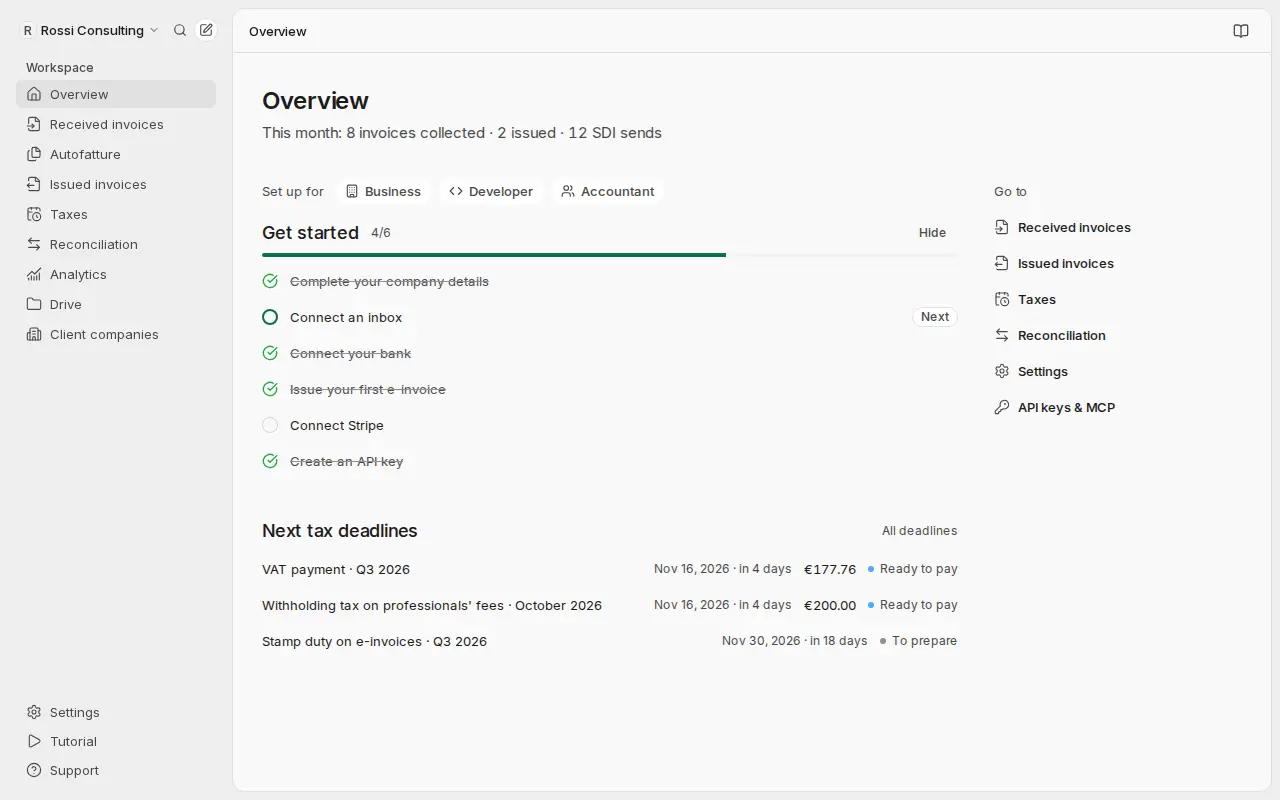
Set up Getbeel in about ten minutes: company details, a mailbox for supplier invoices, your bank and your first invoice to SDI. The Get started list on Overview follows the same steps.
Before you start
- An account. Sign up at getbeel.com with Google or your email. Create a team with your company's name.
- Your company details: legal name, partita IVA (VAT number) or codice fiscale (tax code), registered address and tax regime.
- You don't need to install anything or set up SDI: Getbeel sends through its own channel.
- Cost. Connecting mailboxes in the app needs a plan with invoice credits. Sends to SDI follow the price list (Pricing).
Steps
Complete your company details
Open Settings → Company. Fill in the legal name, country, partita IVA or codice fiscale, address and Tax Regime. Press Save company profile.
Connect a mailbox
Open Settings → Email and choose the Gmail, Outlook or Other email (IMAP) tab. Press the connect button and allow reading. Getbeel asks for read-only access.
To look for the invoices of the last few months right away, open Received invoices and press Scan now.
Connect your bank
Open Reconciliation → Connect your bank, or upload a bank statement. Getbeel matches each movement to its invoice.
Issue your first e-invoice
Open Issued invoices, press New invoice and choose New invoice. Fill in the customer and the lines, then press Save draft. From the invoice menu choose Send to SDI and confirm.
Invite your team
Open Settings → Members and press Invite members. Choose a role for each person:
- Owner: full access, including billing, members and settings.
- Member: scans email, manages invoices and sees analytics.
- Accountant: read-only; sees and exports invoices, taxes and bank data, but cannot change, approve or delete anything.
What just happened
- Your company is set up. Every invoice you issue carries these details, and the pre-send checks use them.
- Supplier invoices arrive on their own. Getbeel checks the mailbox once a day and the AI reads them into Received invoices.
- Bank movements are matched to invoices in Reconciliation.
- Your first invoice is at SDI. Its status updates on its own when the receipt arrives.
- Your team works in Getbeel with the access of their role.
If it fails
| Message | Cause | Fix |
|---|---|---|
| "Your company profile is not saved yet: complete Settings → Company first." | Company details are missing | Complete step 1 |
| "You need an active SDI add-on subscription to use issued invoices. Please upgrade your plan." | The account has no SDI add-on | Open Settings → Usage & billing |
| "Your email connection limit has been reached." | Your plan allows fewer mailboxes | Disconnect a mailbox or change plan |
| No credits in the scan history | Your invoice credits have run out | Add credits in Settings → Usage & billing |
| Rejected on the invoice | An SDI check did not pass | Press Correct and resend (Issue an invoice) |